Method 1: Utilizing Yoast SEO Plugin
- Install and Activate Yoast SEO:
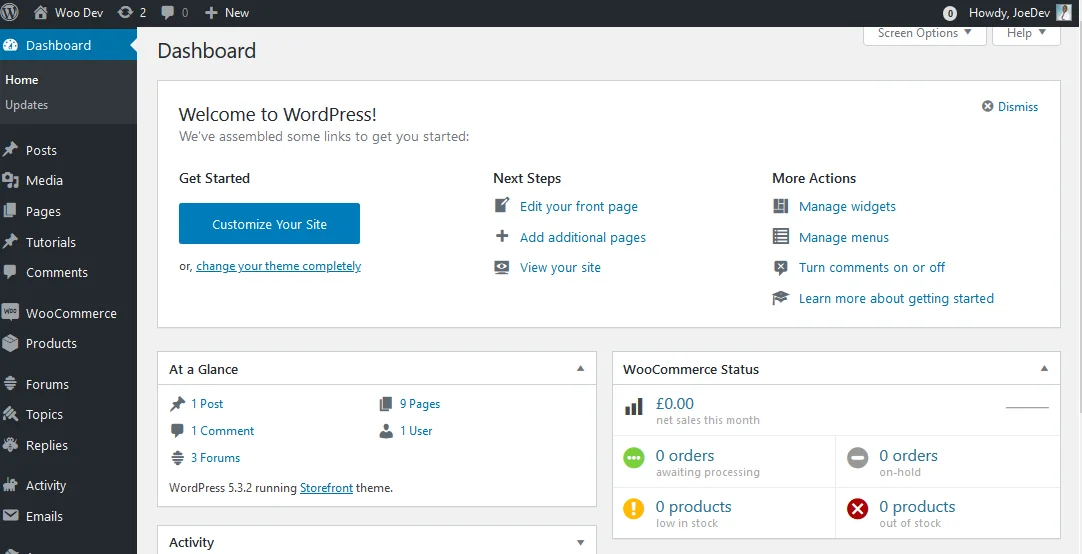
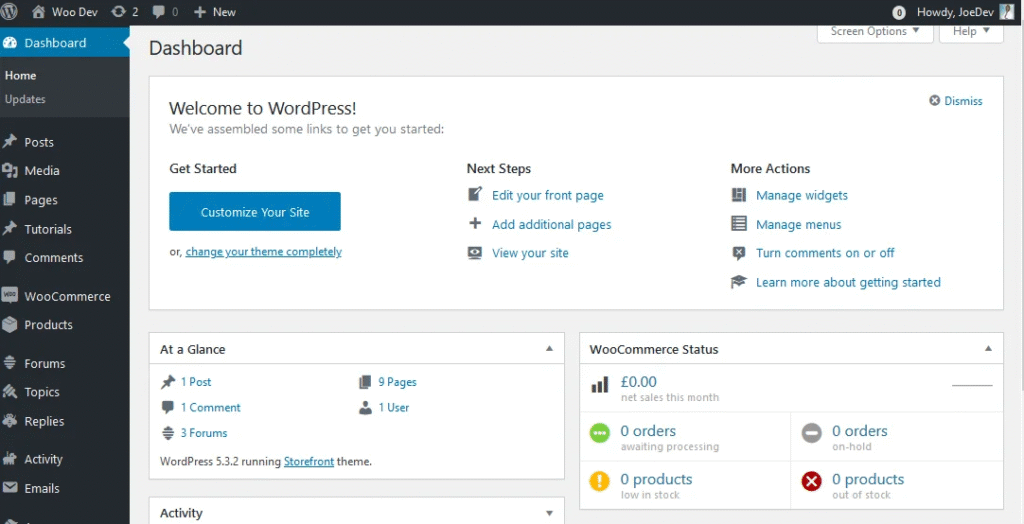
Access your WordPress dashboard.
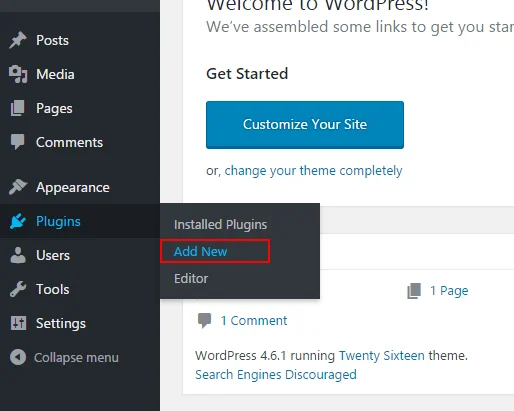
- Navigate to “Plugins” > “Add New.”
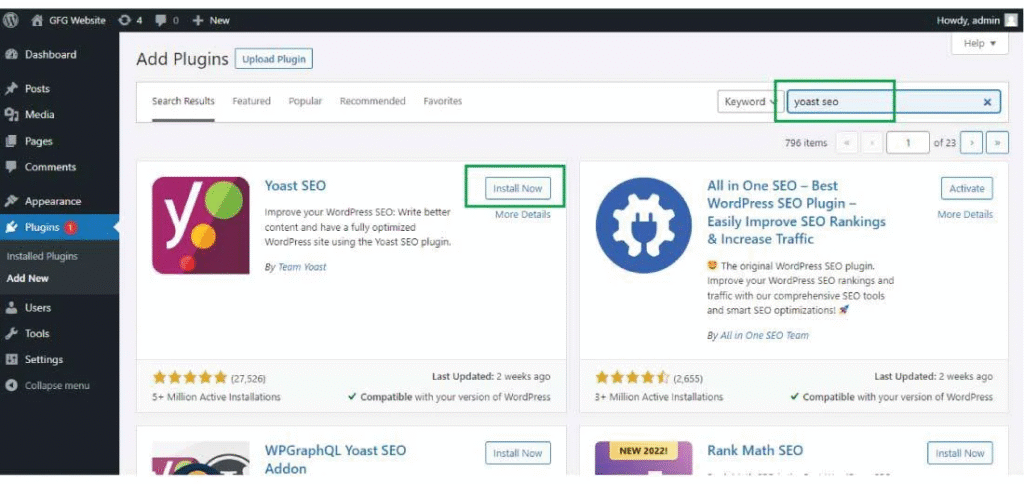
Search for “Yoast SEO,” install it, and then activate the plugin.
- Configure Yoast SEO:
Upon activation, an “SEO” menu will appear in your dashboard. Go to “SEO” > “General.”
Visit the “Features” tab and ensure that the “XML Sitemaps” feature is turned on. - Generate the Sitemap:
Within the Yoast SEO menu, go to “SEO” > “General.”
Navigate to the “Features” tab.
Toggle the switch for “XML sitemaps” to enable it. - View Your Sitemap:
The sitemap should be generated automatically. Access it by appending “/sitemap_index.xml” to
your domain (e.g., www.yourdomain.com/sitemap_index.xml).
Method 2: Utilizing Google XML Sitemaps Plugin
- Install and Activate Google XML Sitemaps:
Head to your WordPress dashboard.
Navigate to “Plugins” > “Add New.”
Search for “Google XML Sitemaps,” install it, and then activate the plugin. - Configure Google XML Sitemaps:
After activation, find a new “XML-Sitemap” menu in your dashboard. Go to “Settings” > “XMLSitemap.” - Generate the Sitemap:
Adjust the settings as necessary; defaults usually suffice.
Save changes.
Click on the “XML Sitemap” link to view and verify your sitemap. - Submit to Google Search Console:
If not done already, create a Google Search Console account and add your website. Submit your sitemap to Google for indexing.
Method 3: Manual Creation
If you prefer a manual approach:
- Create a Sitemap Manually:
Develop a simple XML sitemap using a text or XML editor. Adhere to the sitemap protocol (https://www.sitemaps.org/protocol.html) to structure your
sitemap. - Upload to Your Website:
Save the file as “sitemap.xml.”
Upload it to the root directory of your WordPress installation using FTP or your hosting file manager. - Submit to Google Search Console:
Follow the steps outlined in Method 2 to submit your sitemap to Google Search Console.
Remember to regularly update your sitemap whenever you modify content to keep search engines informed about the latest changes.
we provide many type of courses which can increase your SKILL.